

Open the admin screen
On-site queue guidance
Manage waiting with an on-site QR or online link
Operators start a queue and run the call screen. Visitors scan an on-site QR or open a shared online link to receive a ticket without signing in.
mewQ
The operator starts the queue; visitors receive tickets
The operator scans the start QR shown on the terminal screen to open the admin screen. Before starting the queue, choose on-site QR or online-link issuance. Visitors receive tickets using the selected method.
Issuance methodOn-site QR or online link
Sign-in to receive a ticketNot required
Free base queueUp to 50 tickets
Choose an issuance method
Issue visitor tickets
Use cases
For places that need to show queue numbers and call order
Issue tickets through an on-site QR or online link, then guide visitors in order from the call screen.
Pop-ups and merch booths
Start the queue on event day with one tablet, laptop, or display.
Cafes and bakeries
Make pickup and busy-hour calls easier for guests to follow.
Small desks and counters
Useful for school desks, clinic support counters, and temporary reception points.
Events and temporary sales
Start without a heavy account setup, even when several booths need a shared rhythm.
Clinic support desks and pharmacy pickup
Show the current call and waiting count clearly at counters with short waits and repeated calls.
Repair intake and pickup counters
Works well where intake and pickup happen separately, such as device repair, laundry, or custom orders.
Restaurants with sudden rushes
On days when a full reservation system is too much to set up, issue numbers on site and guide guests in order.
Consultation booths and check-in desks
Fits temporary desks where staff call the next person and keep the line moving.
Other reception counters
Use mewQ to show queue numbers and call order. Before starting, compare expected attendance with the limit shown on the admin screen.
Issue tickets with an online link
Don’t have a spare display device, or want to let people join before they arrive? Select “Online link issuance”, then share the ticket link on Instagram Stories, X (Twitter), WhatsApp, or another channel. Guests can receive a ticket without signing in.
Contact
Contact
If you have a question or a venue idea, leave a short note.
Your message will be delivered to the mewQ operator. Email: support@mewq.app

Flow
Operators start the queue; visitors receive tickets
Choose on-site QR or online-link issuance before starting each queue. The method cannot be changed after the queue starts.

On-site QR issuance
Scan the QR to get a ticketIssue tickets instantly without login.

Online link issuance
Receive a ticket onlineIssue tickets from the shared link without scanning a QR code. You cannot change the issuance method after starting the queue.
01
Open the admin screen
Scan the admin-start QR shown on the terminal screen.
02
Choose how to issue tickets
Before starting the queue, choose on-site QR or online-link issuance. The choice cannot be changed after starting.
03
Visitors receive tickets
Visitors scan the on-site QR or open the shared online link. They do not need to sign in to receive a ticket.
04
Call visitors in order
The operator runs the call screen, and visitors check their ticket status on their own screens.
Pricing
mewQ aims to let anyone use basic features such as managing small queues and issuing tickets for free.
The base queue is free. Check the guidance for use with and without an operator PIN, and confirm the actual values on the admin screen.
Free base queue
Without an operator PIN, the base queue can issue up to 50 tickets.
Check the active limits
Check each queue's ticket limit and remaining operating time on the admin screen.
With an operator PIN
The stated baseline with an operator PIN is 200 tickets and 8 hours. Check the actual limit and remaining time on the admin screen.
Sign in for 100 more tickets and 4 more hours
Signing in adds 100 tickets and 4 operating hours once per queue. The total is 150 tickets and 6 hours without a PIN, or 300 tickets and 12 hours with a PIN. Check the administrator page for your actual limits.
FAQ
FAQ
A few things worth checking before you start operating.
Operator FAQ

How do I start issuing tickets with an online link?
Before starting the queue, select “Online link issuance”, then share the ticket link on Instagram Stories, X (Twitter), WhatsApp, or another channel. A queue must start with either an on-site QR code or an online link, and you cannot change the method afterward.
What does “Processing the request.” mean on the admin screen?
The admin screen is loading or saving an operator PIN or branding setting. Do not repeat the action; wait for the notice to disappear, then check the result.
What should I do if I see “Check this display address again”?
The display link has no valid access information or is no longer valid. Select “Copy display link” in the admin screen, then reopen the display with the copied link.
Visitor FAQ

Do I need an app?
No. mewQ runs in a modern browser without installing an app. You can operate it from any PC, tablet, or phone that can open a web screen.
Do visitors need to sign in or enter a phone number?
No sign-in or phone number is needed to receive a ticket by on-site QR or online link. Signing in is required for some authenticated sharing and ticket-use actions, which can be associated with an account.
Can I get a ticket without scanning a QR code?
Yes. Once the operator selects “Online link issuance” and shares the ticket link, you can open it and receive a ticket without signing in.
What happens on weak networks?
An unstable connection may prevent ticket issuance or a status check. Follow the on-screen guidance and try again after the connection returns.
What should I do if I see “mewQ is taking a short break”?
This appears when mewQ cannot retrieve the current status right away. Keep the screen open and wait a moment. On a ticket screen, select “Retry now” to check the status again.
Is “Changing language” an error?
No. It is a transition notice while the selected language screen is prepared. It is not a service connection or terminal-link error, so wait briefly for the selected language screen to open.
Notes
Things to check before using mewQ
mewQ issues queue tickets and shows call order. Check the actual limits and operating time on the admin screen before starting.
Confirm limits before starting
Compare expected attendance and operating time with the values shown on the admin screen before starting the queue.
Networks that restrict sign-in
Some operator features require sign-in. A network that blocks the sign-in provider may prevent access to those features.
Keep admin link and PIN private
The admin link and PIN can control the queue. Share them only with the operators who need access.
Check operating time
Check the operating time shown on the admin screen before starting. Some queue actions may be restricted when time runs out.
Transfer a ticket
Use the ticket-sharing option to transfer a ticket. The original holder keeps the right to view and use it. A recipient must accept the share before using the ticket; the regular ticket URL alone does not grant use permission. A sharing link cannot be reused after it has been used or expired.
Check expected attendance
Compare expected attendance with the ticket limit shown on the admin screen. If the queue is close to its limit, tell visitors whether ticket issuance is ending.
Prepare the call screen
If you run multiple queues, clearly distinguish each queue’s QR code or link. Check power, auto-lock, sleep settings, and brightness on the call-screen device.
Image management
Set a PIN and sign in on the administrator page to upload images. The samples below show where each image appears.
Image uploads are in beta testing.
Logo image (top of ticket)
Recommended 1024x1024 PNG/JPG/WebP. Square images work best. Upload limit 2MB.
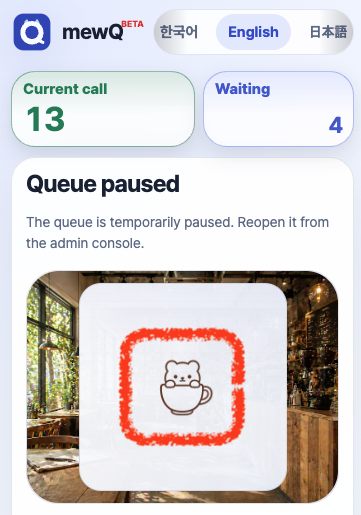
QR background image
Recommended 1600x900 PNG/JPG/WebP. Wide background images work best. Upload limit 2MB.
The same image also appears as a faint background on the ticket screen.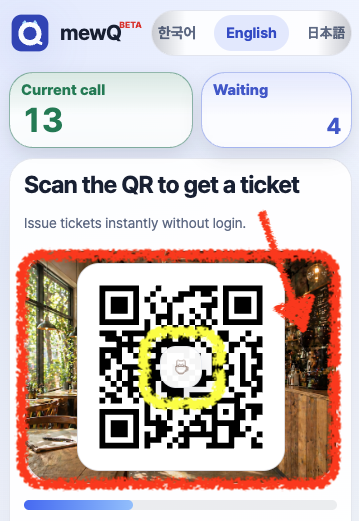
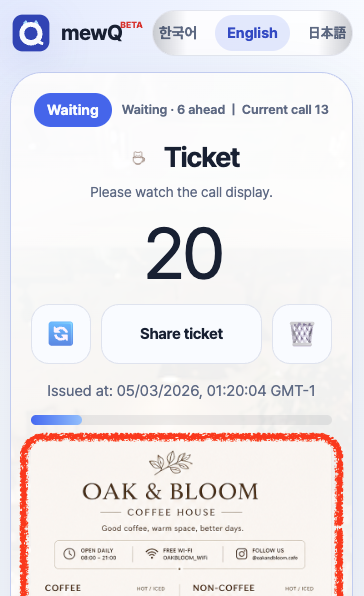
Ticket bottom image
Shows an image at the bottom of the ticket. Upload limit 5MB.
mewQ
For venues that want a calmer line without a heavy platform
mewQ focuses on issuing tickets, calling numbers, and showing waiting clearly.